PaperCut Hive - Printing Guide
Printing Guide
Learn how to use PaperCut Hive to print from any device
Sending Documents to the Printer
MAC & Windows
1. In your document, select File > Print. The printing pop-up will appear.
2. In Destination, select PaperCut Printer. (If it's not showing, ask your IT Admin which printer is best.)
3. Select Print.
Chrome OS
1. In the Chrome browser, open the document you want to print.
2. Select the three-dot icon > Print.
3. In Destination, select PaperCut Printer. (Not showing? Try selecting See more. If you still can't see it, ask your IT Admin which printer is best.)
4. Select Print.
iOS
1. Install Profile (first time only)
Open your PaperCut mobile app, then select the user icon in the top right corner. In the bottom navigation drawer, select Install Profile. Follow the instructions on your mobile phone to finish installing the profile.
2. Print
Open any app you want to print from, then select the Share icon. Select Print. In Destination, select PaperCut Printer. (If it's not showing, ask your IT Admin which printer is best.) Select Print.
Android
1. Open the document you want to print, then select the three dot icon.
2. Select Share and Export (if printing directly from Chrome browser, select Share).
3. Select Print.
4. In Destination, select PaperCut Printer. (If it's not showing, ask your IT Admin which printer is best.)
5. Select Print.
Release Prints
Phone
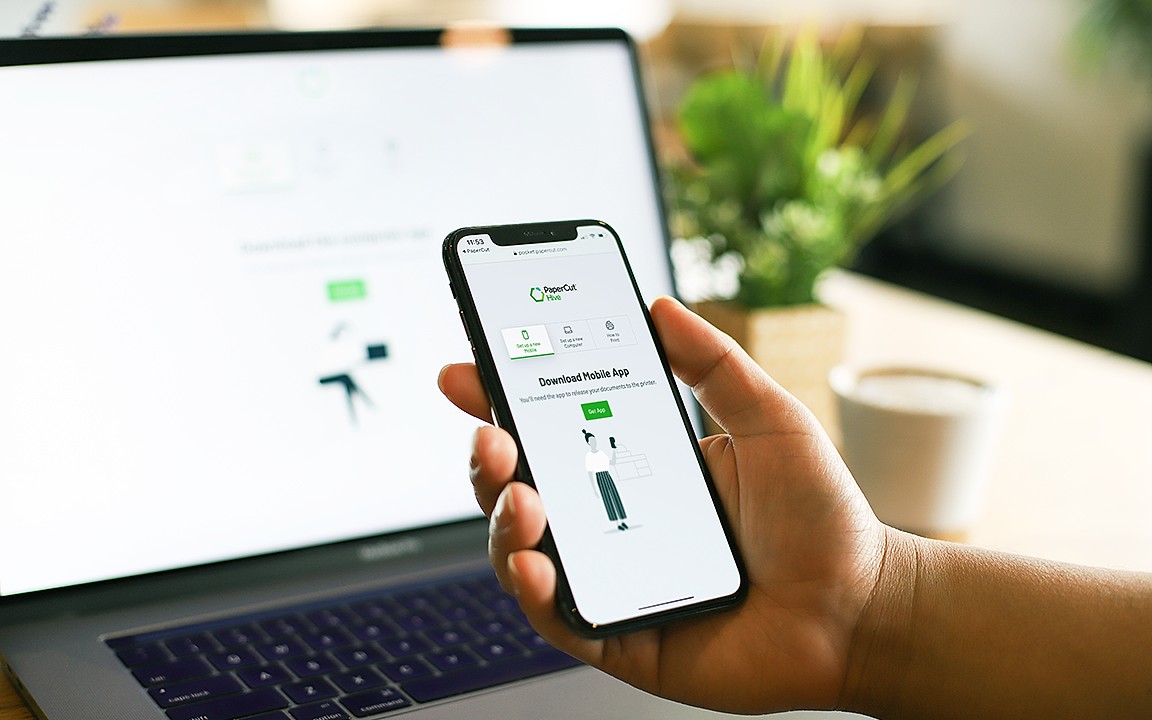
1. Use your mobile phone app to release print jobs
Access Code
1. Find your Access Code on the Home page.
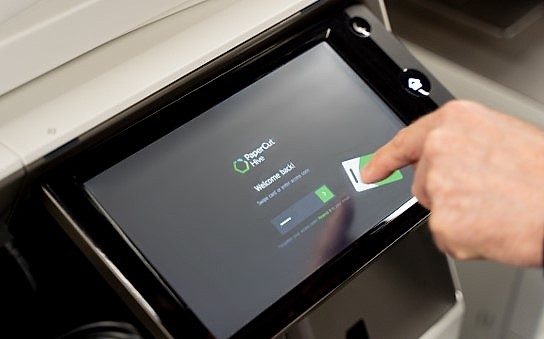
2. On the printer's touchscreen, enter your Access Code to log in.
3. Find your document and release it.
4. Once finished, log out to keep your account secure.
Access Card (Only available in USA)
1. Associate your Access Card (first use)
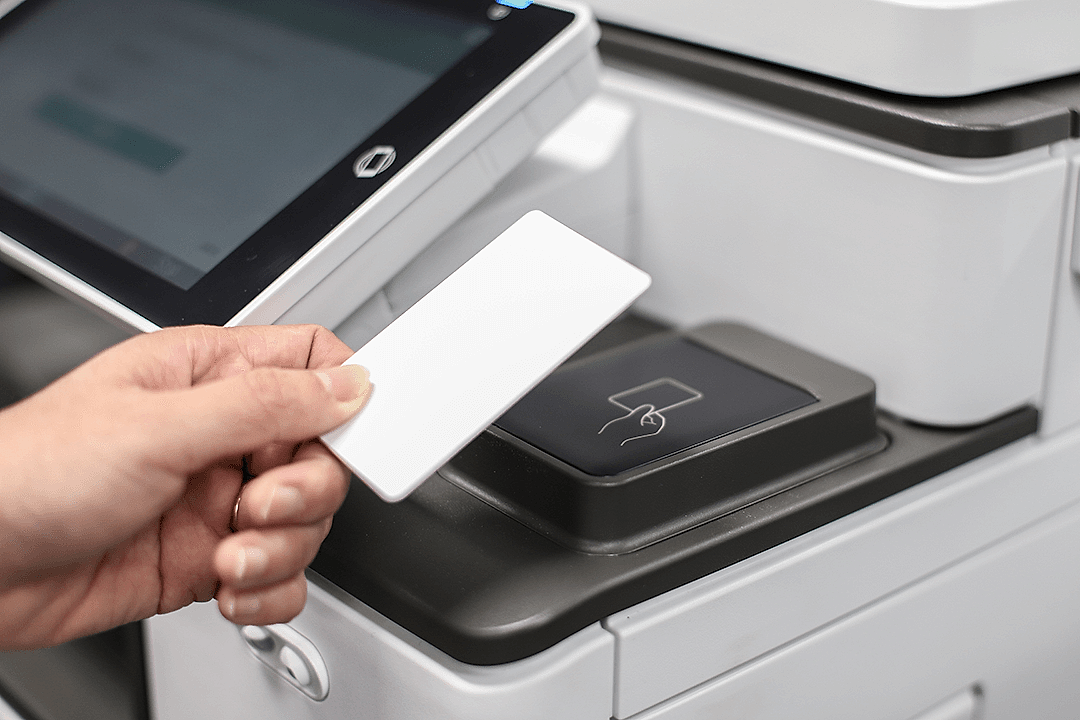
Tap your card on the card reader. If the card has not been associated, you will be asked to enter your Access Code. Enter your Access Code (you'll find it on the Home page). Submit the Access Code to finish associating your Access Card.
2. Release Documents with your Access Card
Tap your card on the card reader. Release your job by selecting Print all or by finding a specific pending document in Print release. Once finished, log out to keep your account secure.